Assignments
The assignments feature allows teachers to create tasks, activities, or projects that are reflected in the GradeBook. These assignments can be easily managed, modified, and deleted. This guide provides step-by-step instructions on how to effectively use this feature.

Step 1: Viewing Existing Assignments

Step 3: Select the Assignment Type

Step 4: Entering Assignment Details
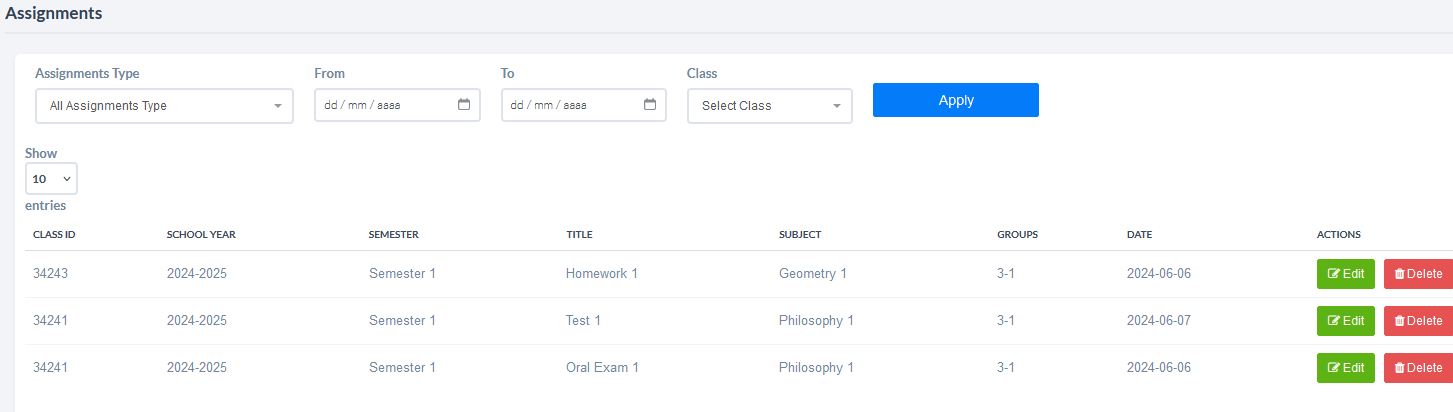
Step 1: Viewing Existing Assignments
On this screen, you'll see a display of assignments created by the teacher, showing the Assignment Title, Group, Semester, and Assignment Date. You'll also have the option to edit or delete each entry.
Step 2: Creating a New Assignment
Additionally, at the top, you'll notice a blue button labeled "NEW" which allows you to create a new assignment by clicking on it.
Step 3: Select the Assignment Type
Through this function, the user can select from the different types of assignments.
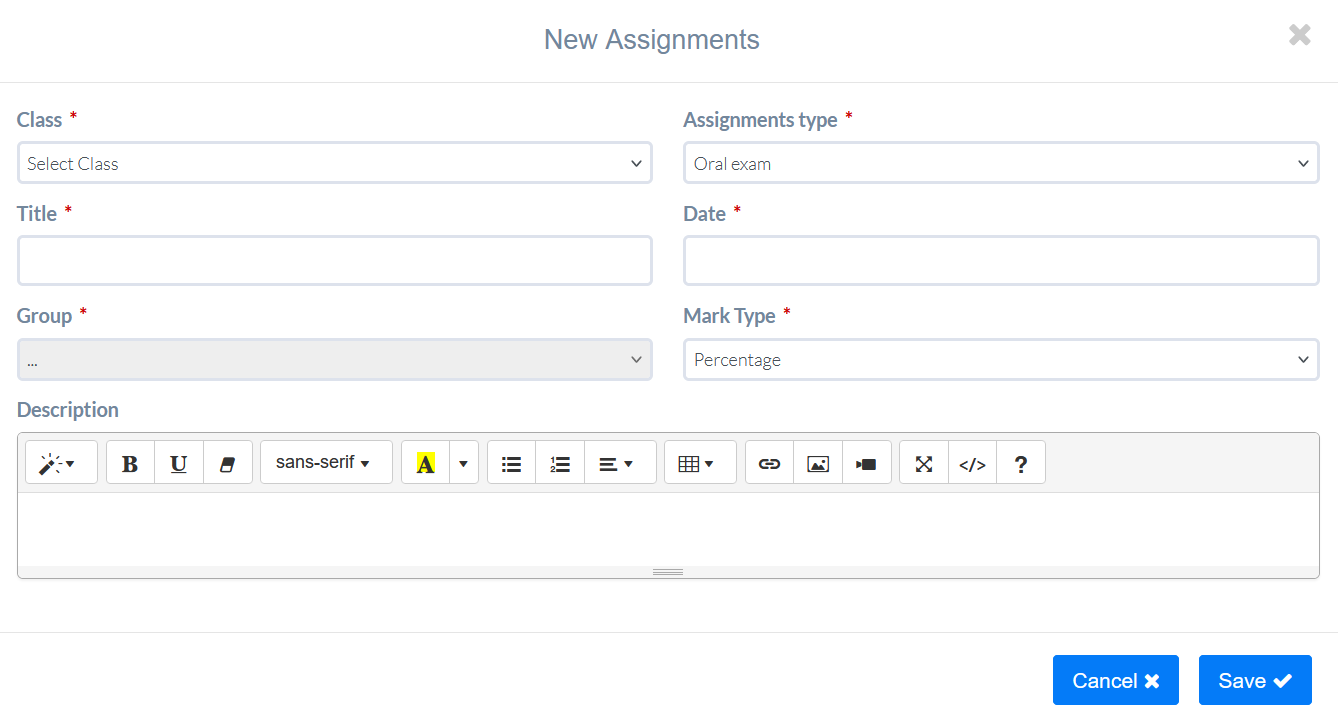
Step 4: Entering Assignment Details
Clicking on "NEW" will bring up a dialog box where the teacher must enter all the necessary details to create the assignment. You can also filter by group, grade, or semester to determine who the assignment will be assigned to.
The system allows you to attach documents and images to the assignment. Once you've filled in all the details, click save
Important Note: Deleting a record in Assignments will also permanently delete any associated grades linked to it from your user profile. Therefore, before executing this action, be absolutely sure of what you want to delete because the grades will be removed permanently.
Video Tutorial
Related Articles
LMS
The Learning Management System (LMS) feature in the College One Parental Portal allows parents to view the assignments given to their children by teachers. This guide provides a step-by-step process for using the LMS to monitor student assignments. ...Gradebook
This function displays all the grades assigned to students based on the classes they take. Step 1: Select Semester and Class Choose the semester you want to consult. Select the class. Step 2: View Assignments and Grades A list will appear on the ...LMS (Learning Management System)
This guide will help students consult assignments, view details, and upload their work using the LMS function on the platform. Step 1: Accessing the LMS Function Open the LMS Tab: Navigate to the LMS function on the platform. Step 2: Viewing Enrolled ...Teacher's LMS
This function has been designed to allow the school director to consult the works assigned by teachers for each of their groups. Step 1: Apply Filters On the left side of the screen, you will see several filters that help you narrow down your search: ...Calendar
The Calendar functionality allows teachers to communicate with parents and students about activities, events, assignments, and other scheduled items. This ensures that everyone involved stays informed about important dates and pending tasks. Step 1: ...